
Hold the right mouse button
Release to open the panel by the pointer. Adjust the hold time and keep a short press for a regular right-click.
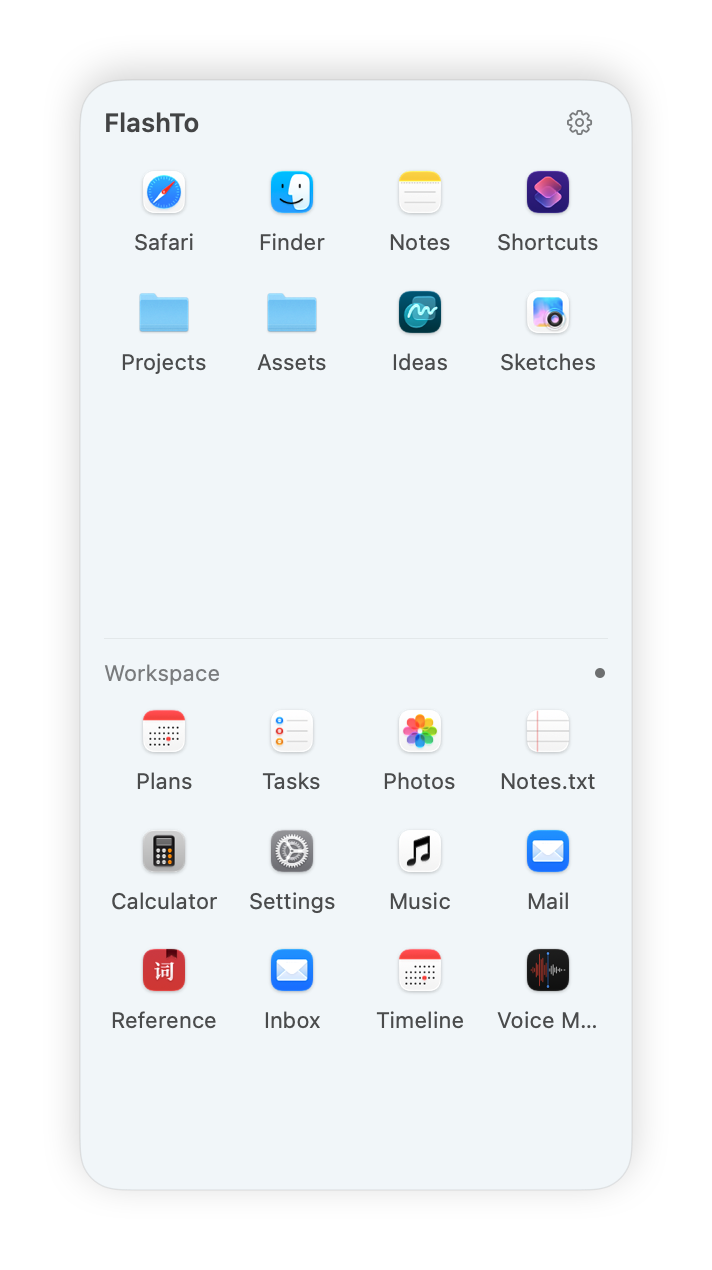
 Hold right-click
 FlashTo for Mac
Hold and release the right mouse button to bring your actions to the pointer. Open a project, run a shortcut, or switch back to the window you need without breaking your flow.
 Download for Mac
14-day free trial · No payment details required
Apple silicon Mac · macOS 15 or later
Triggers
Release to open the panel by the pointer. Adjust the hold time and keep a short press for a regular right-click.
Set a keyboard shortcut to open the same action panel.
Enable either key, then tap and release it on its own to open the panel.
Action types
Add the things you reach for most. Open the panel and click an action to run it.

Open Notes

Open a design file

Open a project folder

Open a reference site

Run a configured shortcut
Window switching
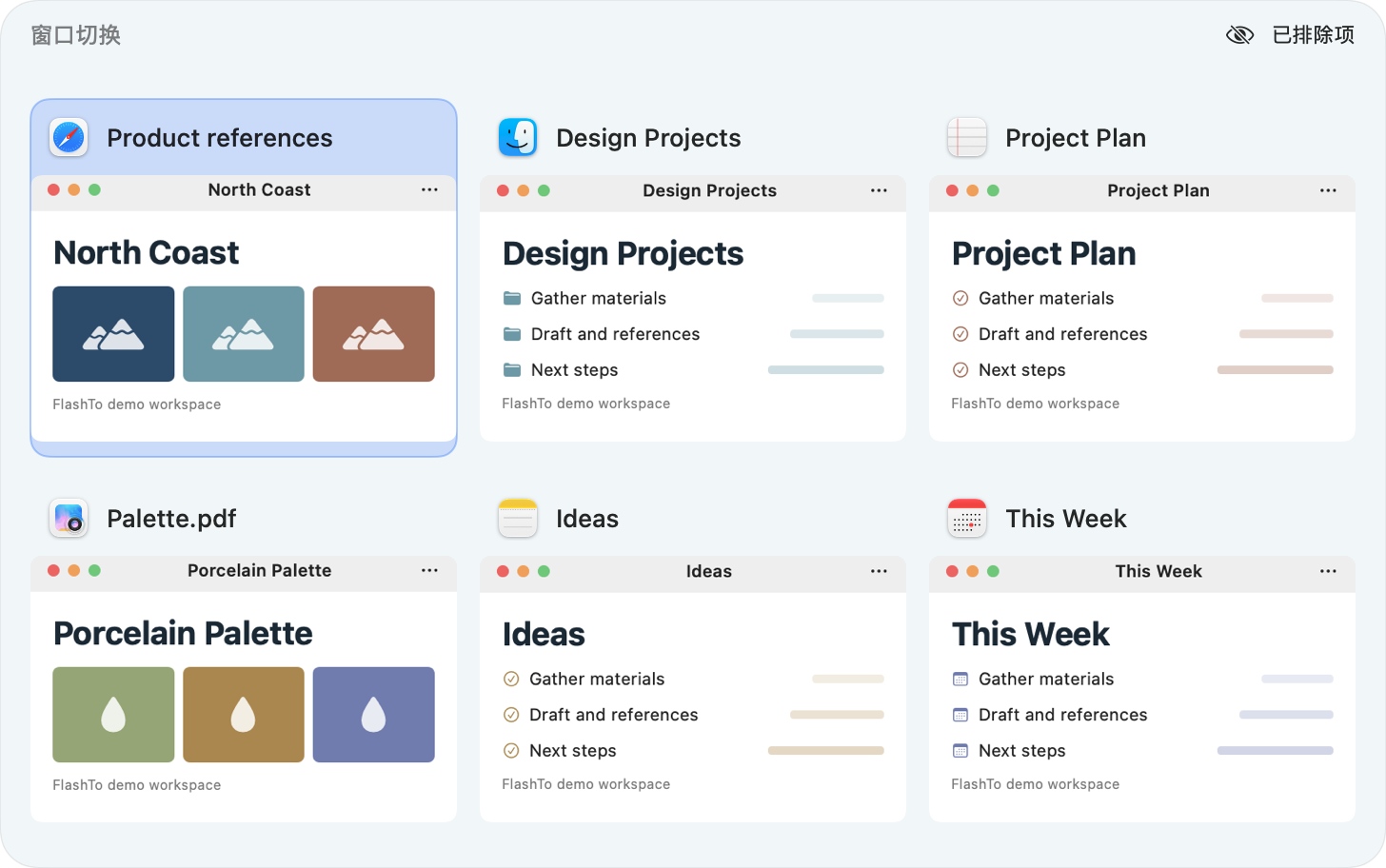
Use Option + Tab to see window thumbnails. Pick the right window by its contents, even when several belong to the same app.
Window thumbnails require Screen Recording permission.
Mouse Assist
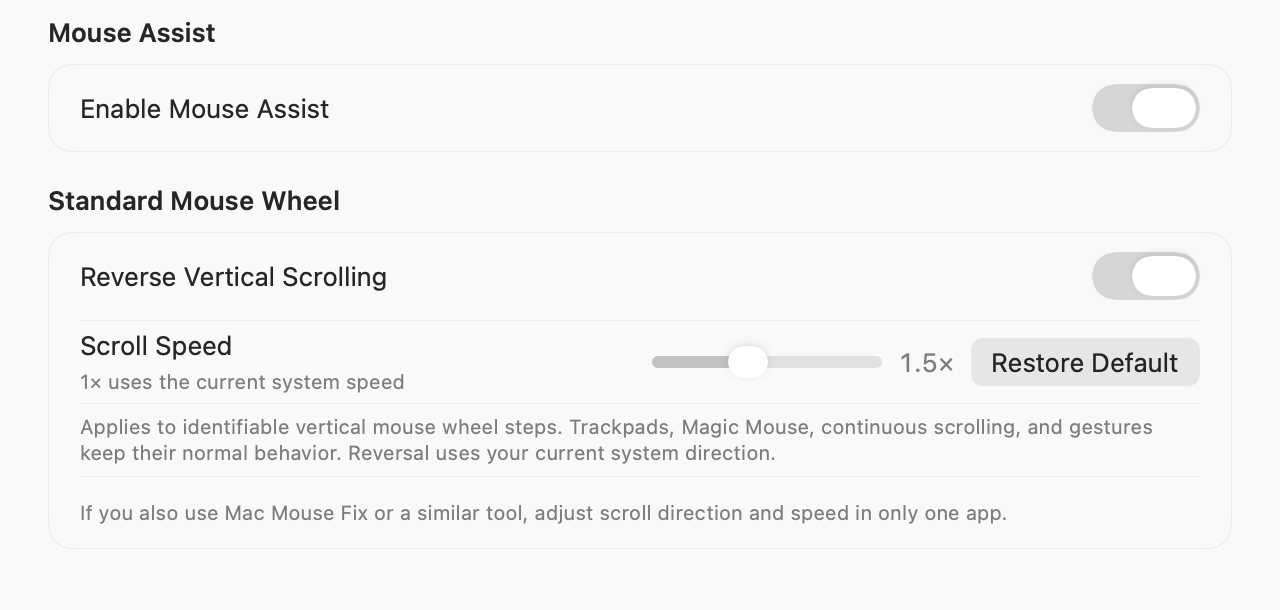
Reverse a standard mouse’s vertical scroll direction or set the speed from 0.5× to 3× the system setting.
Applies to standard wheel steps. Trackpads and continuous scrolling keep their system behavior.
14-day free trial. No payment details required. Trials and subscriptions are coming soon.